How to Register, Reset, and Activate Staff on Gobeller
Managing your team effectively starts with setting up their access the right way. On Gobeller, administrators can easily register new staff, reset login details, and verify staff email addresses — all from one simple dashboard.
This ensures your team members have secure access while keeping your business data safe and organized.
Registering New Staff
To add a new staff member:
Go to Administrator
Click Manage Staff
Click Add to create a new staff profile
Once added, the staff will receive their login credentials and can sign in immediately.
Resetting or Changing Staff Login Details
If a staff member forgets their password or needs to update their login details, follow these steps:
Go to Administrator
Click Manage Staff
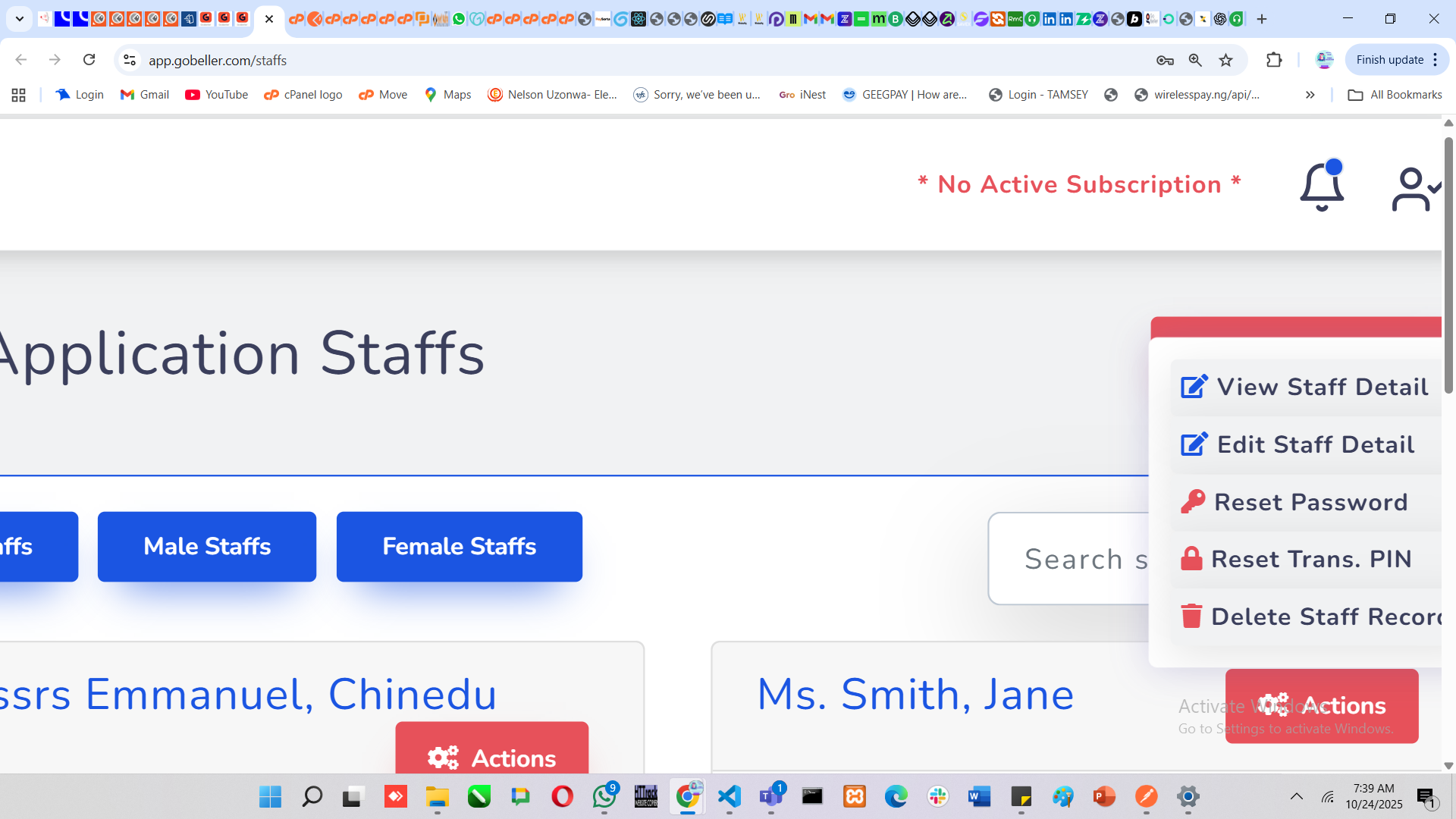
Click the Action button beside the staff member’s name
Select Change Password
Enter the new password (e.g. TMCstaff@2)
⚠️ Note: Passwords are case-sensitive.
✅ Correct: TMCstaff@2
❌ Incorrect: Tmcsfaff@2
While on the same page, confirm the correct username and copy it to ensure smooth login.
Activating Staff Email (Verification)
For first-time logins, staff members will be prompted to verify their email address.
To complete this:
Click Resend or Request Verification on the login page
Check the email inbox (or spam folder) for the verification message
Click the verification link provided
? Important: The verification link must be opened in the same browser where the staff is logged in.
This helps the system confirm that the user owns the account and maintains security.
Final Note
Setting up and managing staff on Gobeller is designed to be fast, secure, and reliable.
By keeping login details accurate and verifying emails properly, you ensure your team’s access runs smoothly — while keeping your platform safe and professional.
Was this article helpful?
That’s Great!
Thank you for your feedback
Sorry! We couldn't be helpful
Thank you for your feedback
Feedback sent
We appreciate your effort and will try to fix the article